
📱 快速入門
❓ 常見問題 (FAQ)
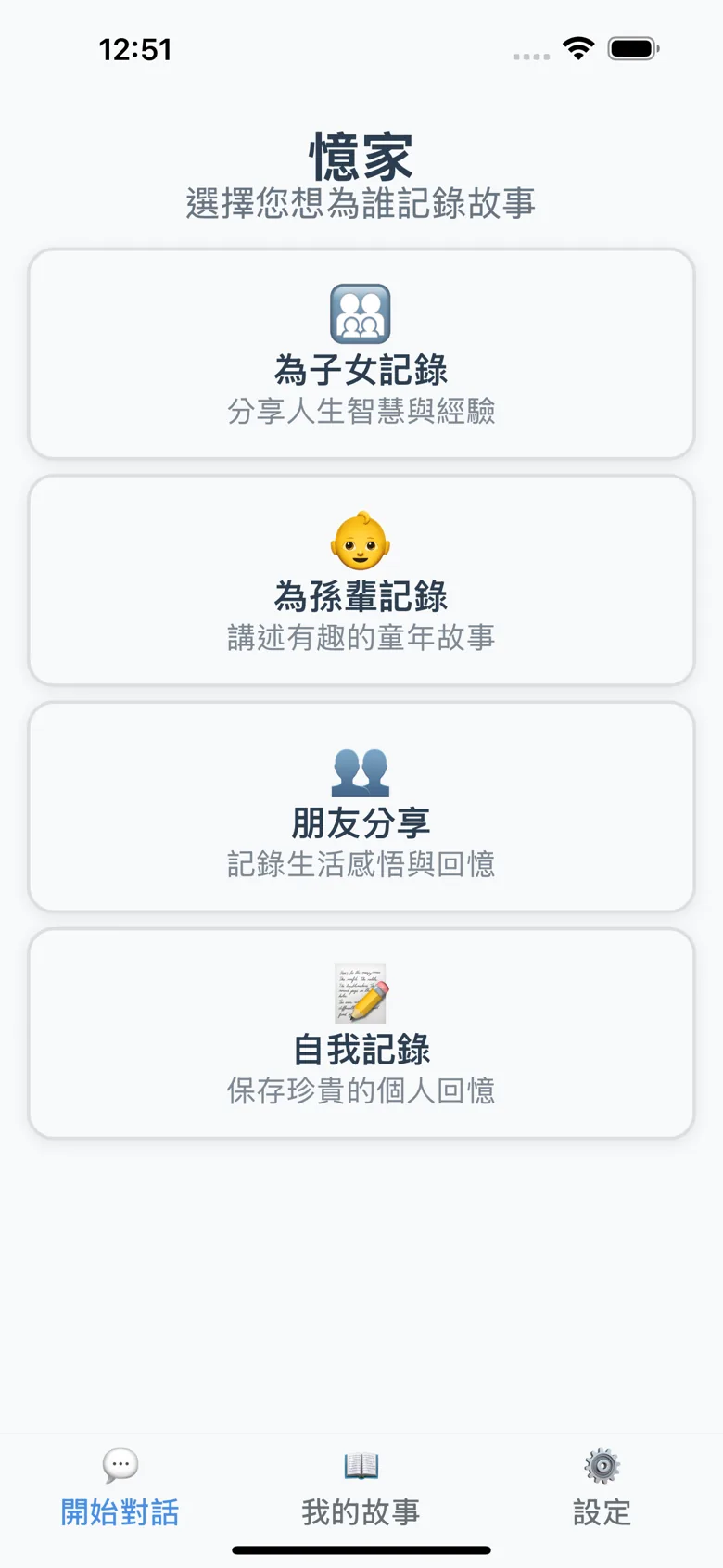
步驟 1:選擇受眾
首次進入應用時,選擇您想為誰記錄故事:
- 為子女記錄 - 留給孩子的人生經驗
- 為孫輩記錄 - 分享給孫子孫女的家族故事
- 朋友分享 - 與朋友分享的趣事
- 自我記錄 - 為自己保存的回憶
步驟 2:開始對話
長按畫面下方的紅色「說話」按鈕,AI 助手會開始引導您講述故事。放開按鈕後,您的語音會自動轉換成文字。AI 會持續與您對話,幫助您回憶更多細節。
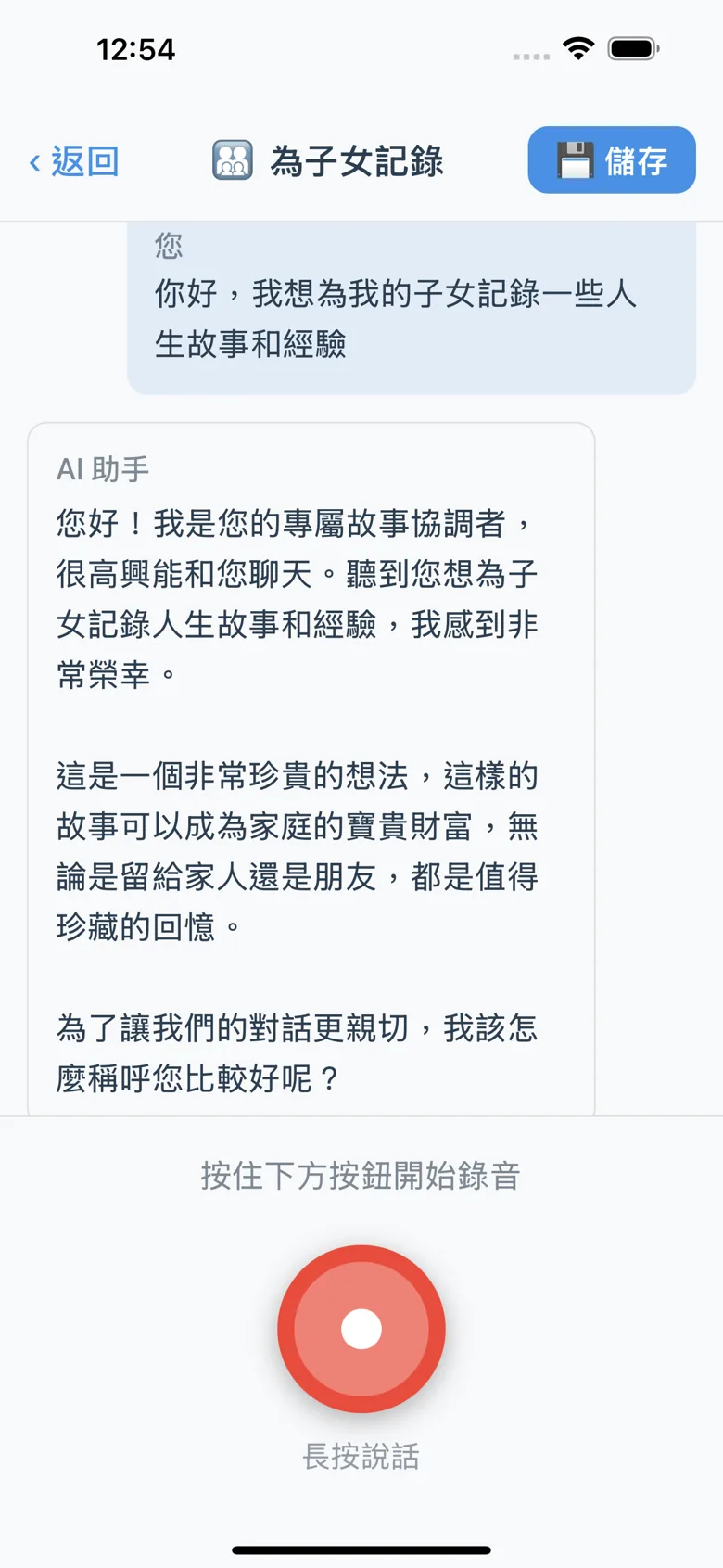
步驟 3:儲存故事
當您完成對話後,點擊右上角的「儲存」按鈕。AI 會自動將您零碎的對話內容整理成一段完整、流暢、適合閱讀和分享的故事,然後保存到您的故事列表中。
不用擔心對話時說得不夠完整或流暢!AI 會在您點擊「儲存」時,自動整理對話內容,改善文法結構,讓您的故事更容易閱讀。這個過程完全自動進行,無需額外操作。
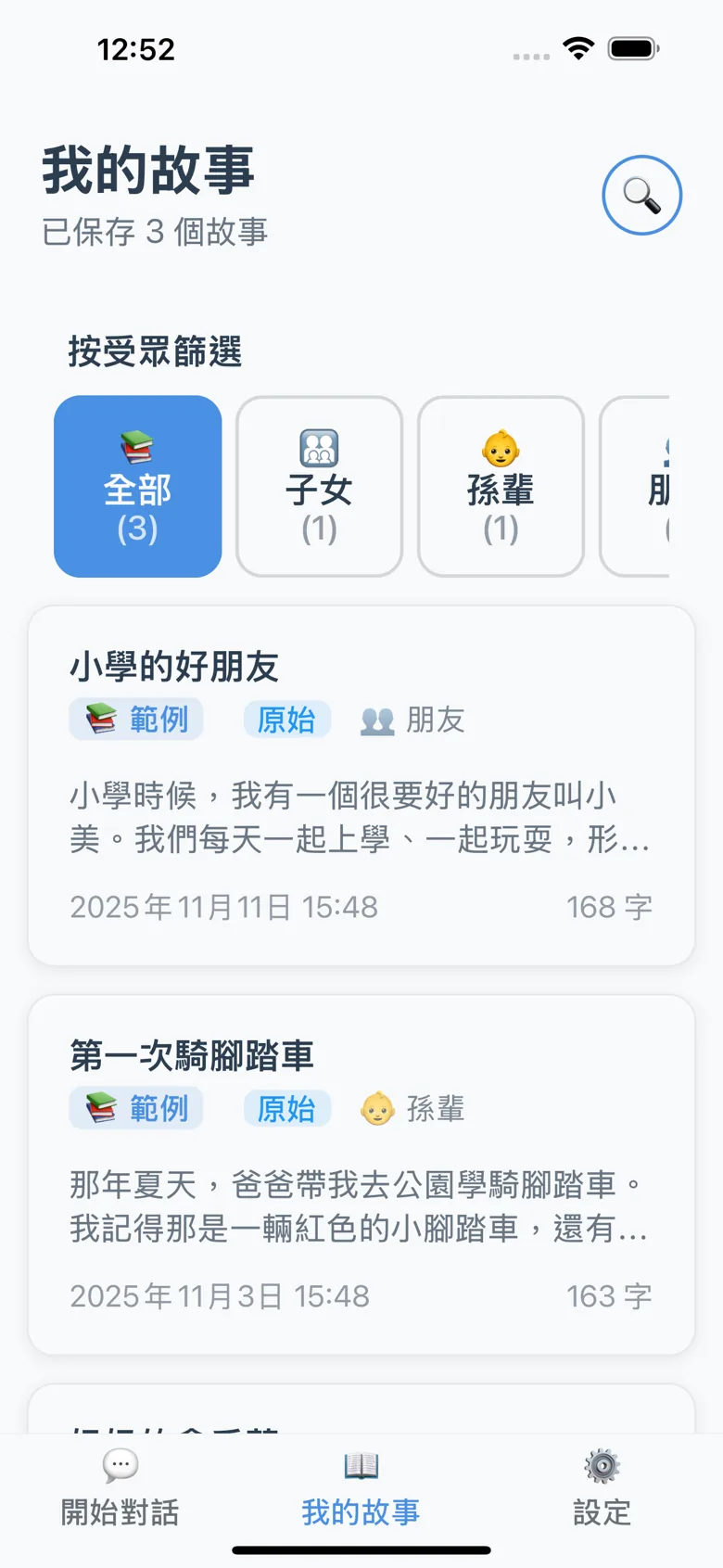
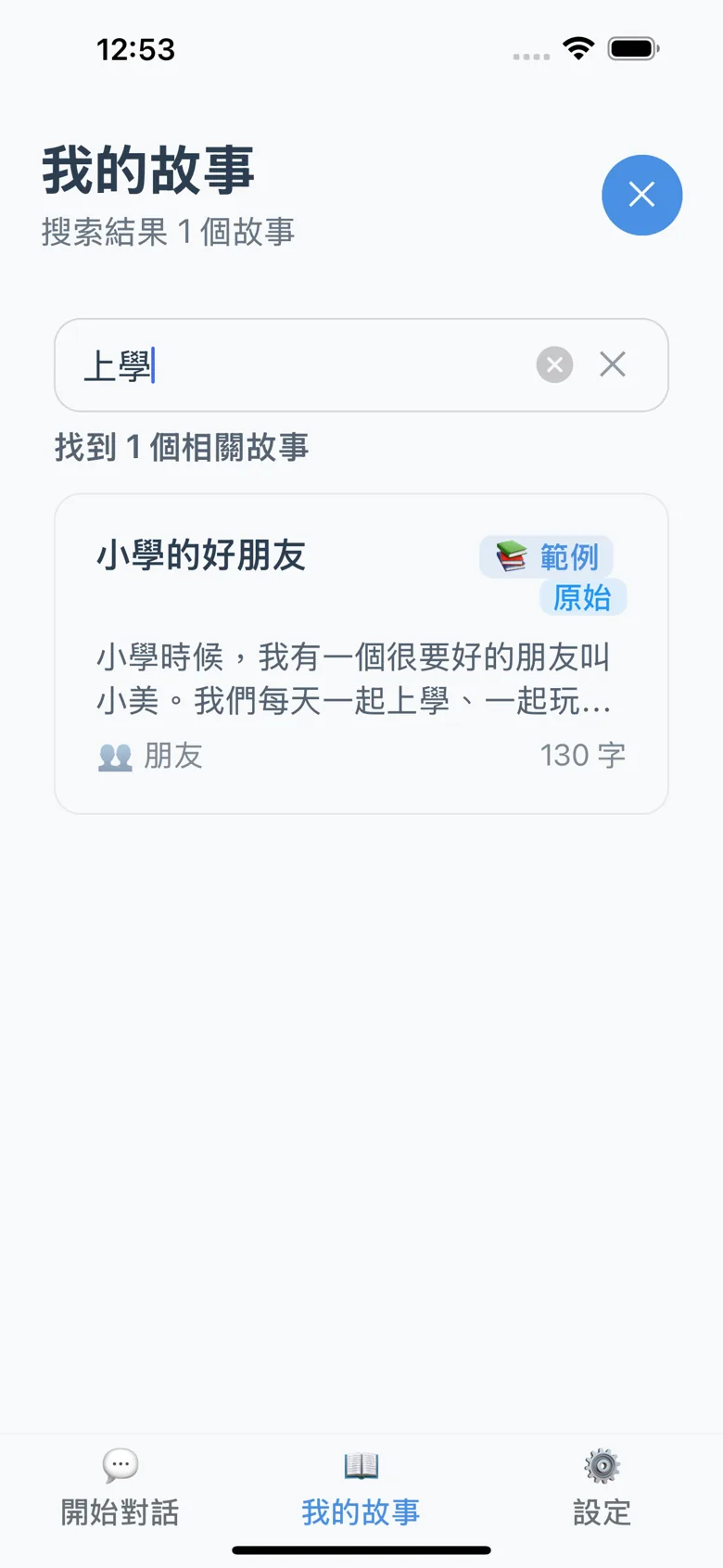
在「故事」頁面,您可以:
- 瀏覽所有故事:按時間順序查看所有已保存的故事
- 篩選故事:使用上方的受眾篩選按鈕(全部/子女/孫輩/朋友)
- 搜尋故事:使用搜尋功能快速找到特定故事
您可以隨時編輯和修改已保存的故事:
- 在故事列表點擊任何故事進入詳情頁
- 點擊右上角的「編輯」按鈕
- 修改標題或內容
- 點擊「保存」完成編輯
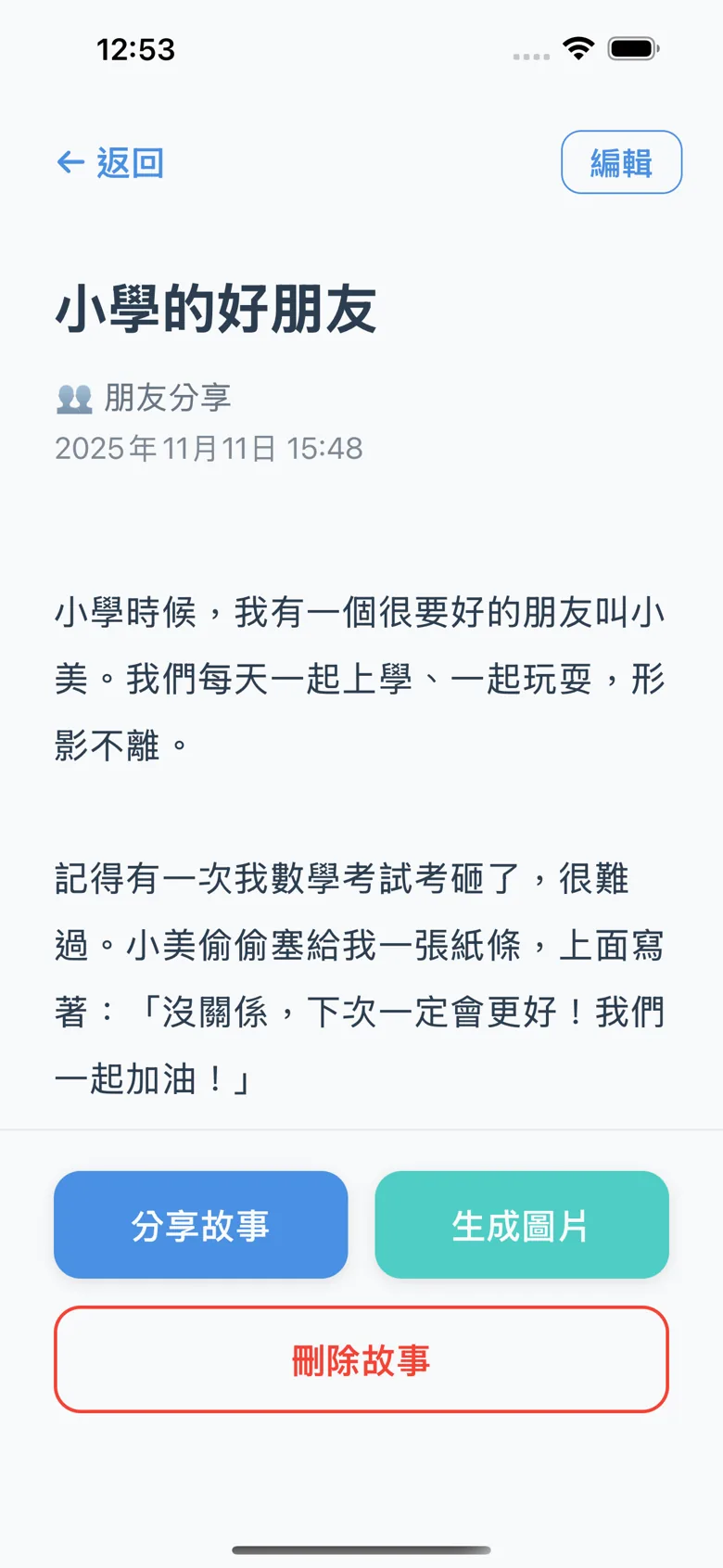
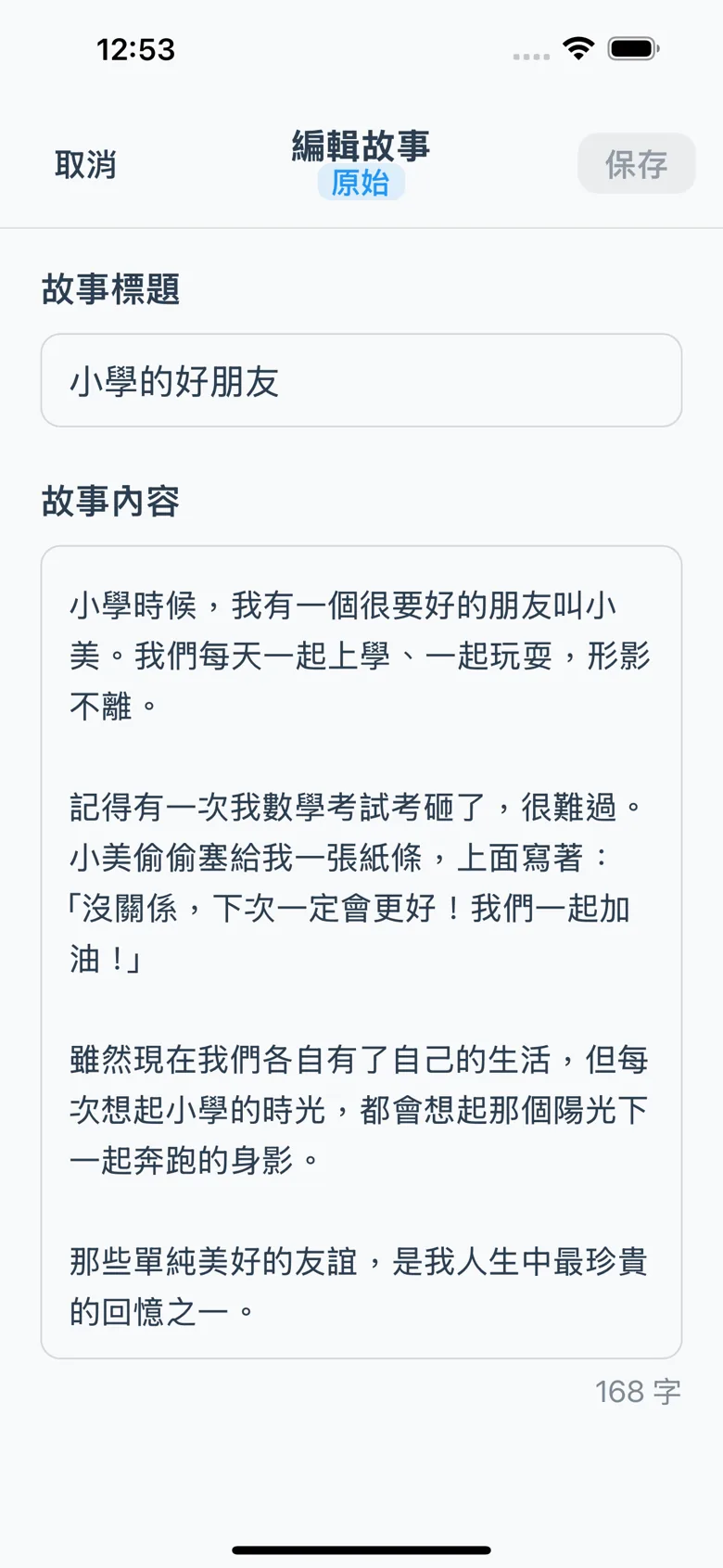
生成圖片:
- 在故事詳情頁,點擊「生成圖片」按鈕
- 選擇您喜歡的圖片風格(溫暖/自然/晨光)
- 等待 AI 生成精美的故事圖片
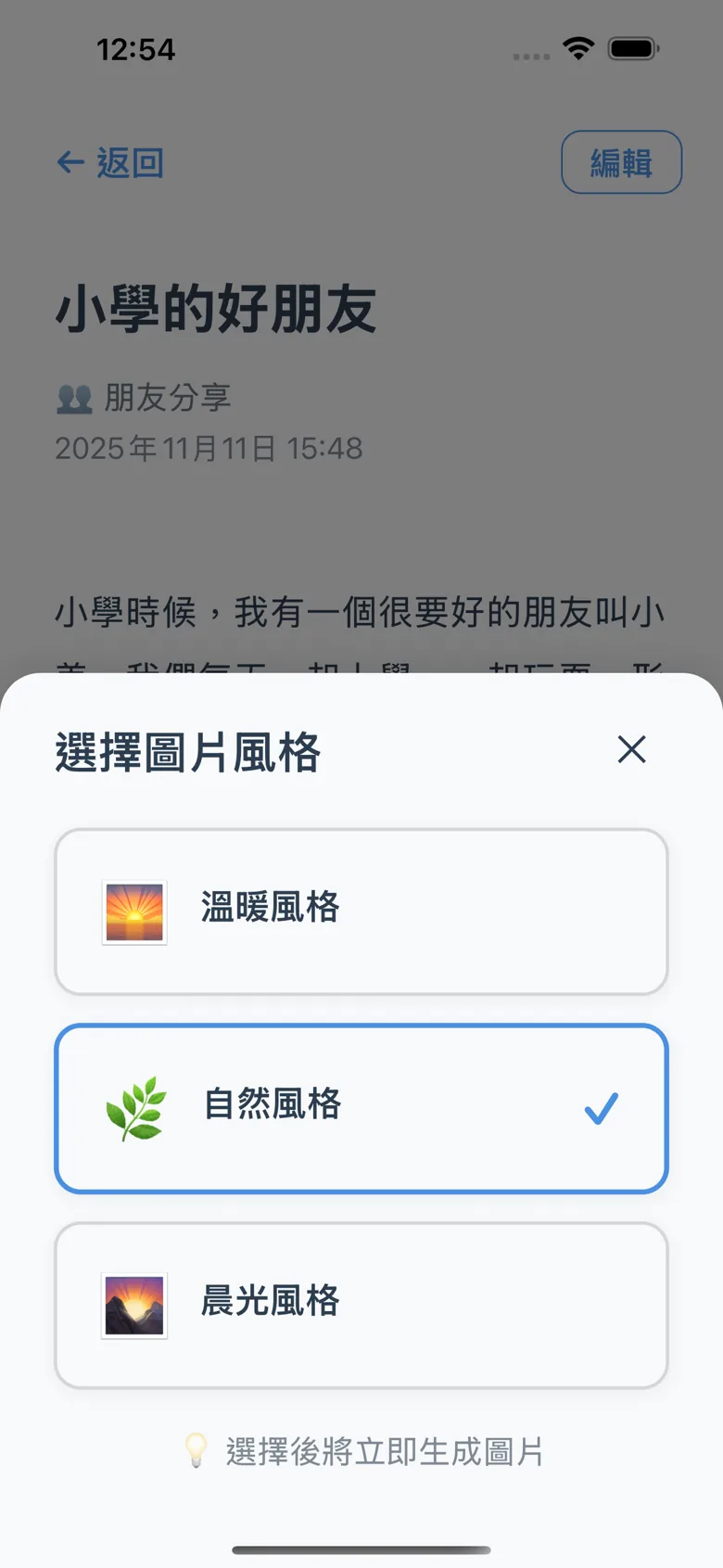
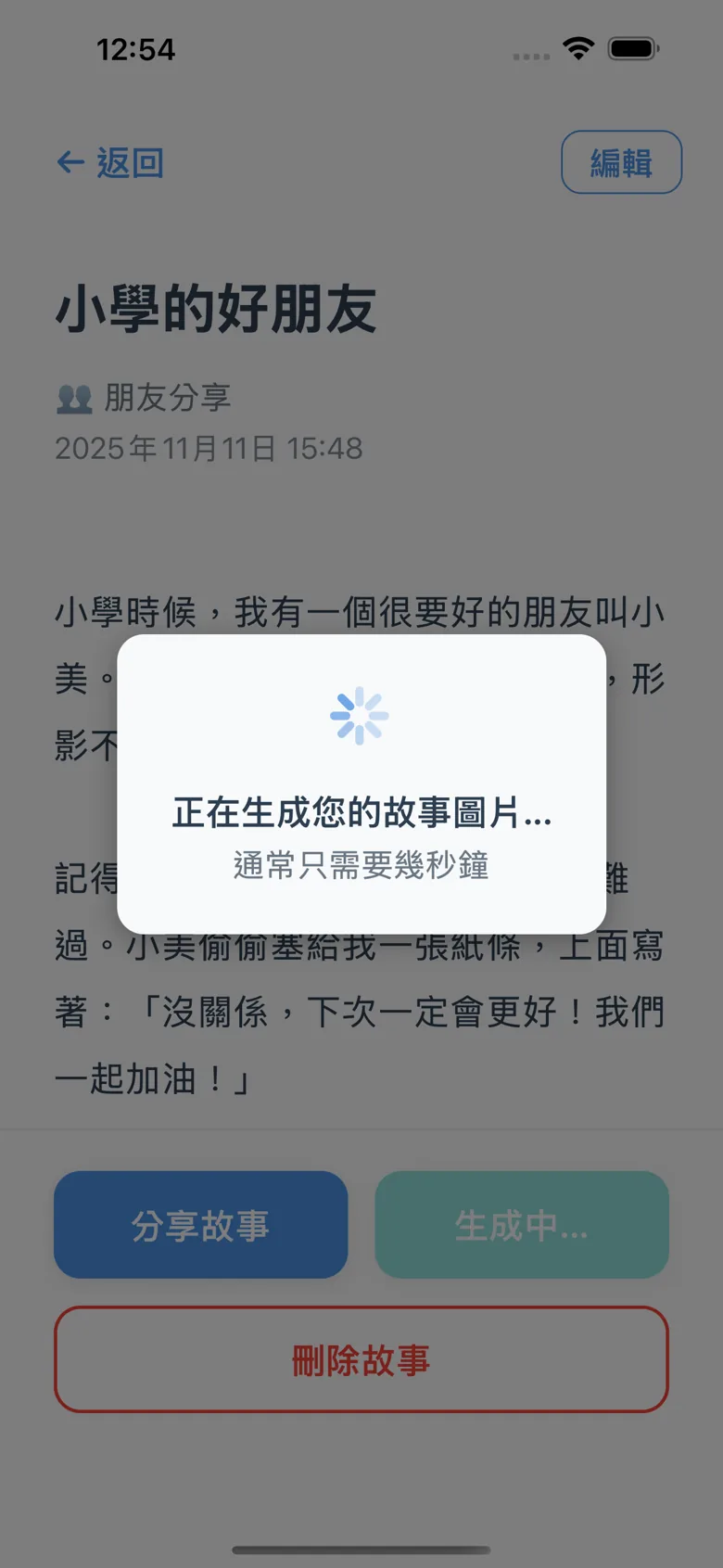
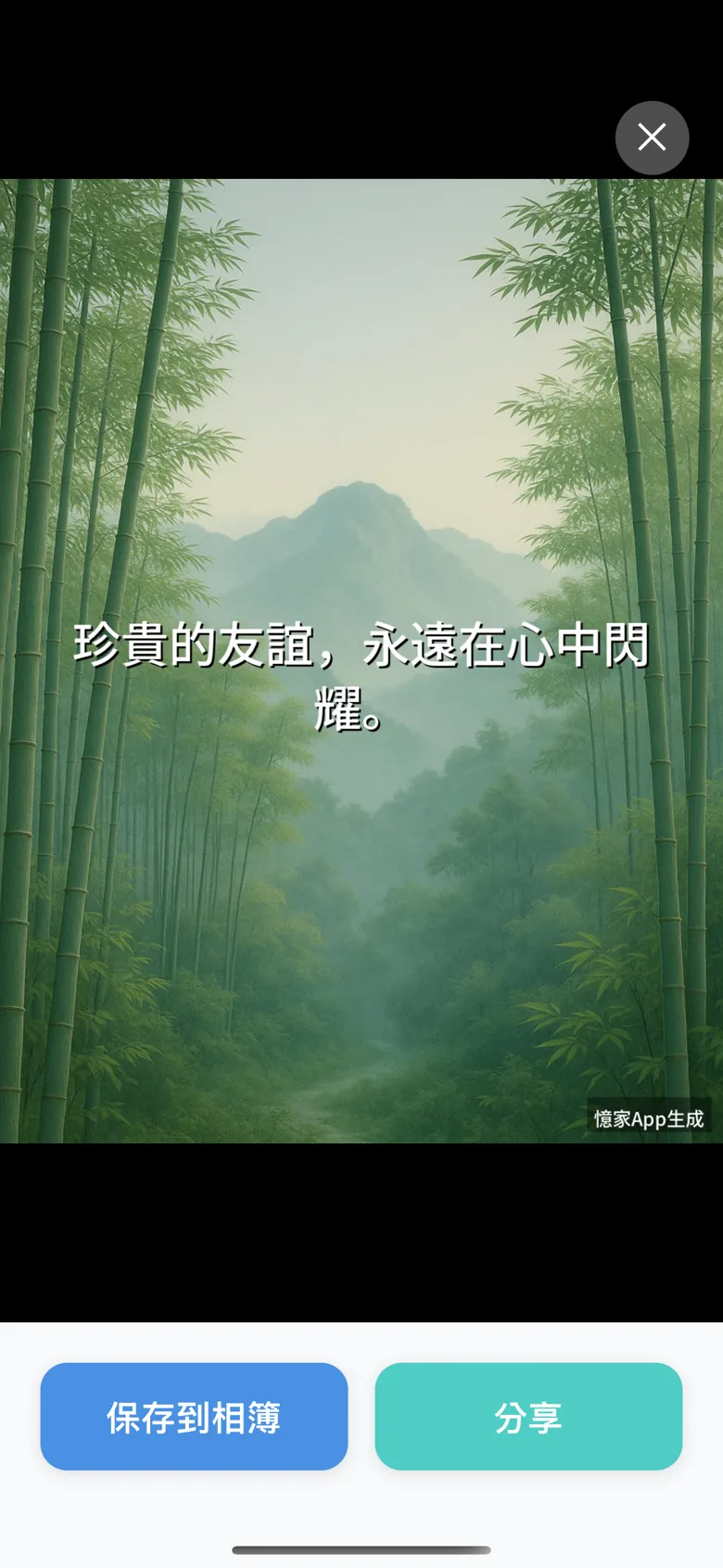
保存和分享:
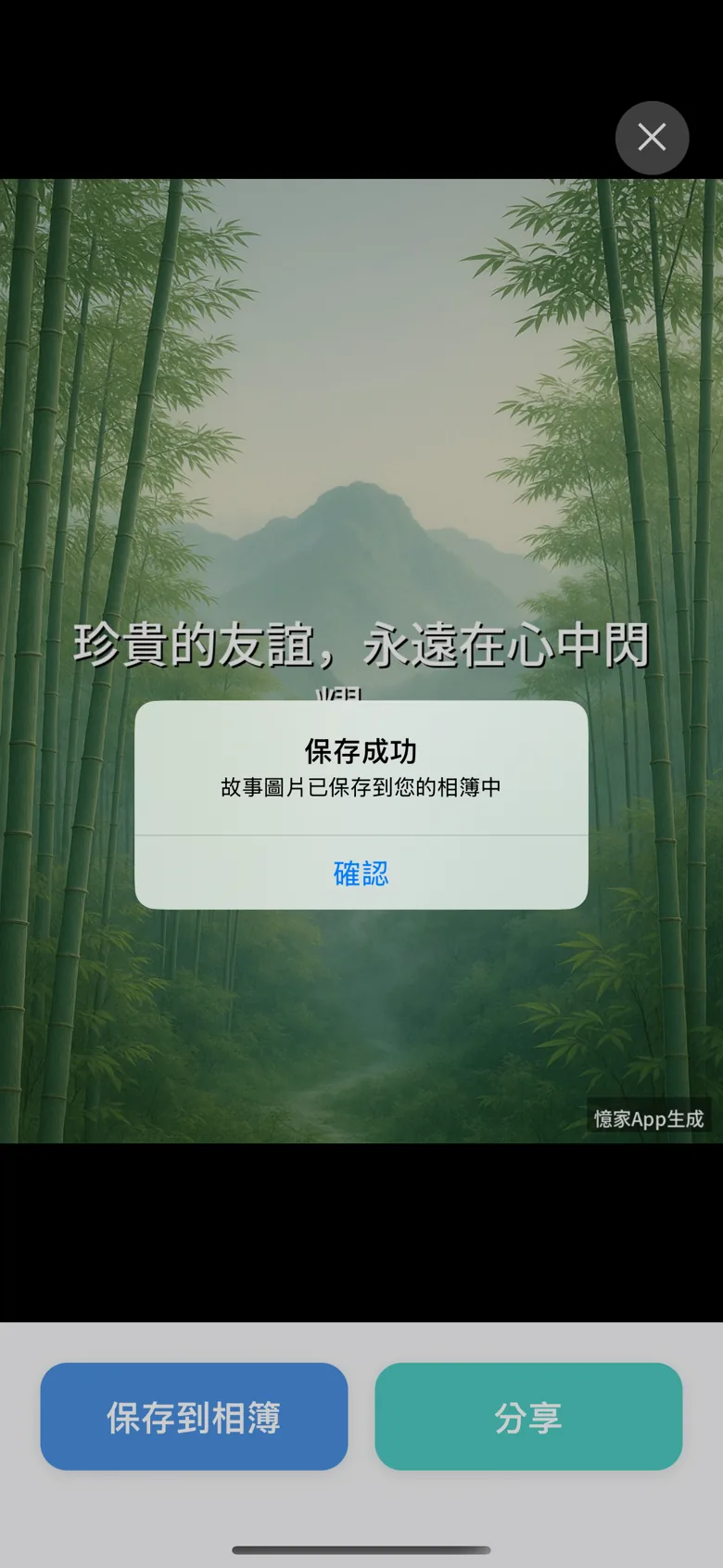
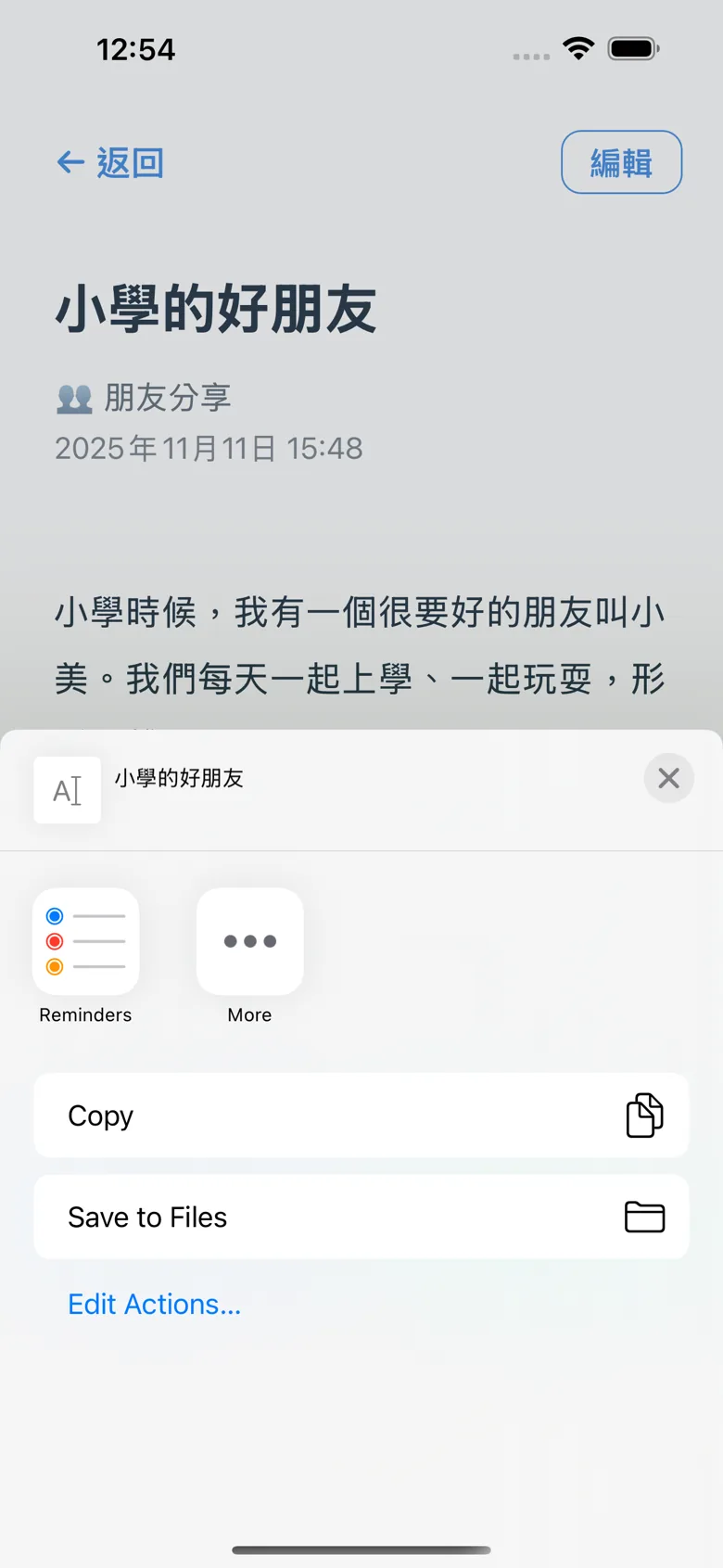
生成圖片後,您可以:
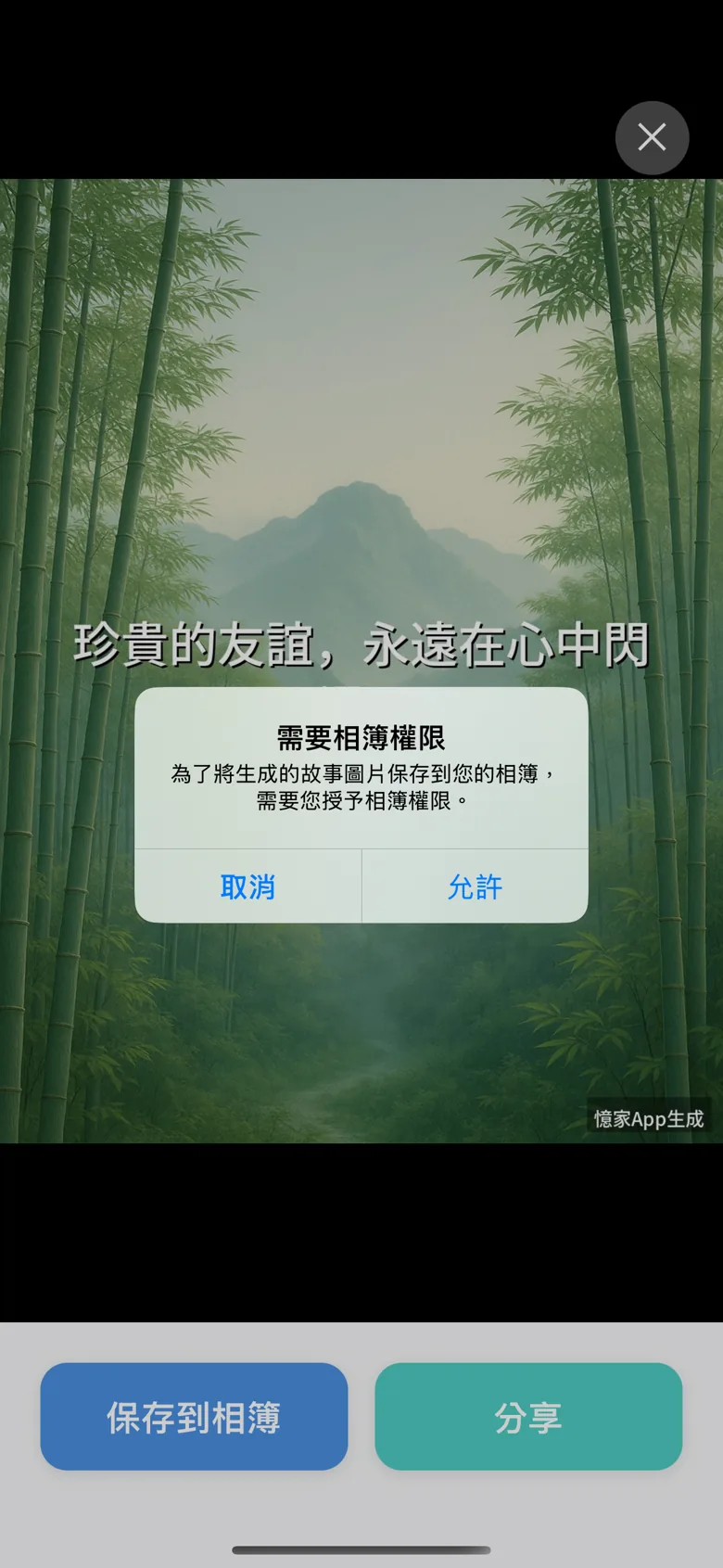
- 保存到相簿(需要授權相簿權限)
- 通過「分享」選單分享到其他應用(如 Line、WeChat、Facebook)
憶家使用 OpenAI Whisper API,是目前業界最先進的語音轉文字技術之一。在正常環境下:
- ✅ 標準國語/普通話:準確度約 90-95%
- ✅ 台語:準確度約 85-90%
- ⚠️ 方言或混合語言:準確度可能降低至 70-80%
- 在安靜的環境下錄音
- 靠近手機麥克風說話
- 說話速度適中,發音清晰
- 每次錄音控制在 1-2 分鐘內
- 錄音後檢查轉錄文字,必要時手動修正
我們非常重視您的隱私和數據安全:
- 🔒 本地優先存儲:您的故事主要保存在您的手機上,其他人無法訪問
- 🔒 加密傳輸:當需要使用 AI 功能時,數據通過 HTTPS 加密傳輸
- 🔒 臨時處理:雲端服務器僅臨時處理您的數據,不會永久保存
- 🔒 不用於訓練:您的故事絕不會被用於訓練 AI 模型
詳細資訊請參閱我們的隱私政策。
憶家需要以下權限才能正常運作:
- 麥克風權限(必需)- 錄製您的語音故事
- 語音識別權限(必需)- 將語音轉換成文字
- 相片庫權限(選用)- 保存生成的故事圖片
您可以在 iPhone「設定」→「憶家」中隨時調整這些權限。
iCloud 自動備份:
如果您啟用了 iPhone 的 iCloud 備份功能,您的故事會自動包含在每日備份中。當您更換新手機時,恢復 iCloud 備份即可找回所有故事。
- 前往 iPhone「設定」→「[您的名字]」→「iCloud」
- 確認「iCloud 備份」已開啟
- 點擊「立即備份」手動進行備份
手動匯出:
目前應用不提供批量匯出功能,但您可以使用「分享」功能將個別故事以文字或圖片形式儲存到其他地方(如郵件、雲端硬碟)。
憶家採用「本地優先」設計,大部分功能離線也能使用。但以下功能需要網路連線:
- 語音轉文字(使用 OpenAI Whisper API)
- AI 對話引導(使用 OpenAI GPT-4o-mini)
- 圖片生成(AI 圖像生成)
您隨時可以在離線狀態下瀏覽和編輯已保存的故事。
常見解決方法:
- 重啟應用:完全關閉應用後重新開啟
- 檢查權限:確認麥克風和語音識別權限已授權
- 檢查網路:確認網路連線正常
- 更新應用:前往 App Store 檢查是否有新版本
- 重啟手機:有時重啟設備可以解決暫時性問題
請通過下方的聯絡方式與我們聯繫,提供以下資訊可以幫助我們更快解決問題:
- 您的 iPhone 型號和 iOS 版本
- 應用版本號(在「設定」頁面查看)
- 問題發生時的操作步驟
- 截圖或錯誤訊息
💬 更多問題?
如果您的問題在上方 FAQ 中沒有找到答案,請隨時透過以下方式聯絡我們。我們會在 1-2 個工作日內回覆您。
📧 聯絡我們
我們很樂意協助您解決任何問題或聽取您的寶貴建議。
SINGAPORE 737714
📱 Quick Start
❓ Frequently Asked Questions (FAQ)
Step 1: Choose Your Audience
When first entering the app, select who you're recording for:
- For Children - Life lessons for your kids
- For Grandchildren - Family stories for grandkids
- For Friends - Anecdotes to share with friends
- For Self - Memories for yourself
Step 2: Start Conversing
Press and hold the red "Speak" button at the bottom of the screen. The AI assistant will guide you through telling your story. Release the button, and your voice will automatically convert to text. The AI will continue the conversation to help you recall more details.
Step 3: Save Your Story
When you finish the conversation, tap the "Save" button in the top right corner. The AI will automatically organize your fragmented conversation into a complete, fluent story that's easy to read and share, then save it to your story list.
Don't worry about speaking perfectly or coherently during the conversation! When you tap "Save", the AI will automatically organize your conversation, improve grammar and structure, making your story easier to read. This process happens automatically without any extra steps.
On the "Stories" page, you can:
- Browse all stories: View all saved stories in chronological order
- Filter stories: Use audience filter buttons (All/Children/Grandchildren/Friends)
- Search stories: Use search feature to quickly find specific stories
You can edit and modify your saved stories anytime:
- Tap any story from the list to view details
- Tap "Edit" button in top right
- Modify title or content
- Tap "Save" to complete editing
Generate Image:
- On story detail page, tap "Generate Image" button
- Select your preferred image style (Warm/Natural/Dawn)
- Wait for AI to generate beautiful story image
Save and Share:
After generating the image, you can:
- Save to Photos (requires photo library permission)
- Share to other apps via Share menu (Line, WeChat, Facebook, etc.)
Family Story uses OpenAI Whisper API, one of the most advanced speech-to-text technologies. Under normal conditions:
- ✅ Standard Mandarin: ~90-95% accuracy
- ✅ Taiwanese Accent: ~85-90% accuracy
- ⚠️ Dialects or Mixed Languages: Accuracy may drop to 70-80%
- Record in a quiet environment
- Speak close to the phone's microphone
- Speak at moderate pace with clear pronunciation
- Keep each recording under 1-2 minutes
- Review transcribed text and manually correct if needed
We take your privacy and data security very seriously:
- 🔒 Local-First Storage: Stories are primarily saved on your phone, inaccessible to others
- 🔒 Encrypted Transfer: When using AI features, data is transmitted via HTTPS encryption
- 🔒 Temporary Processing: Cloud servers only process data temporarily, never permanently store it
- 🔒 Not Used for Training: Your stories will never be used to train AI models
For more details, please refer to our Privacy Policy.
Family Story requires the following permissions to function:
- Microphone Permission (Required) - Record your voice stories
- Speech Recognition Permission (Required) - Convert voice to text
- Photo Library Permission (Optional) - Save generated story images
You can adjust these permissions anytime in iPhone "Settings" → "Family Story".
Automatic iCloud Backup:
If you've enabled iPhone's iCloud Backup feature, your stories are automatically included in daily backups. When you get a new phone, restore your iCloud backup to retrieve all stories.
- Go to iPhone "Settings" → "[Your Name]" → "iCloud"
- Confirm "iCloud Backup" is enabled
- Tap "Back Up Now" to manually backup
Manual Export:
The app currently doesn't offer bulk export, but you can use the "Share" feature to save individual stories as text or images to other locations (email, cloud storage).
Family Story uses a "local-first" design - most features work offline. However, these features require internet:
- Speech-to-Text (uses OpenAI Whisper API)
- AI Conversation Guidance (uses OpenAI GPT-4o-mini)
- Image Generation (AI image generation)
You can always browse and edit saved stories while offline.
Common Solutions:
- Restart App: Fully close the app and reopen it
- Check Permissions: Verify microphone and speech recognition permissions are granted
- Check Network: Ensure internet connection is stable
- Update App: Check App Store for new versions
- Restart Phone: Sometimes rebooting the device resolves temporary issues
Please contact us using the information below. Providing the following details helps us resolve issues faster:
- Your iPhone model and iOS version
- App version number (found in Settings page)
- Steps to reproduce the problem
- Screenshots or error messages
💬 More Questions?
If you can't find the answer in the FAQ above, feel free to contact us using the methods below. We'll respond within 1-2 business days.
📧 Contact Us
We're happy to help you with any questions or hear your valuable feedback.
SINGAPORE 737714